 Easy BeezyApp StoreGoogle PlayRuStoreInstall
Team
How to set up your work schedule
Available slots are calculated from the schedule: on the booking page a client only sees times that are open by the schedule and not taken by appointments.
Step by step
- 01
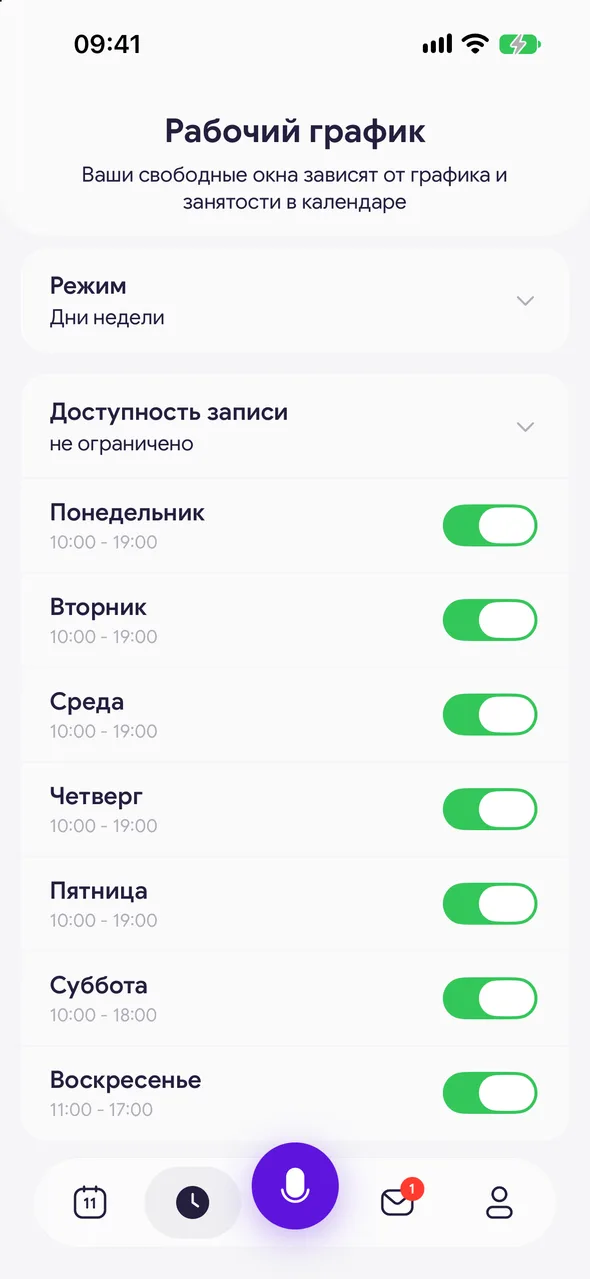
Open «Working hours»
On the bottom bar, tap the schedule button - next to the calendar. «Working hours» will open: Your free slots depend on this schedule and your calendar.
- 02
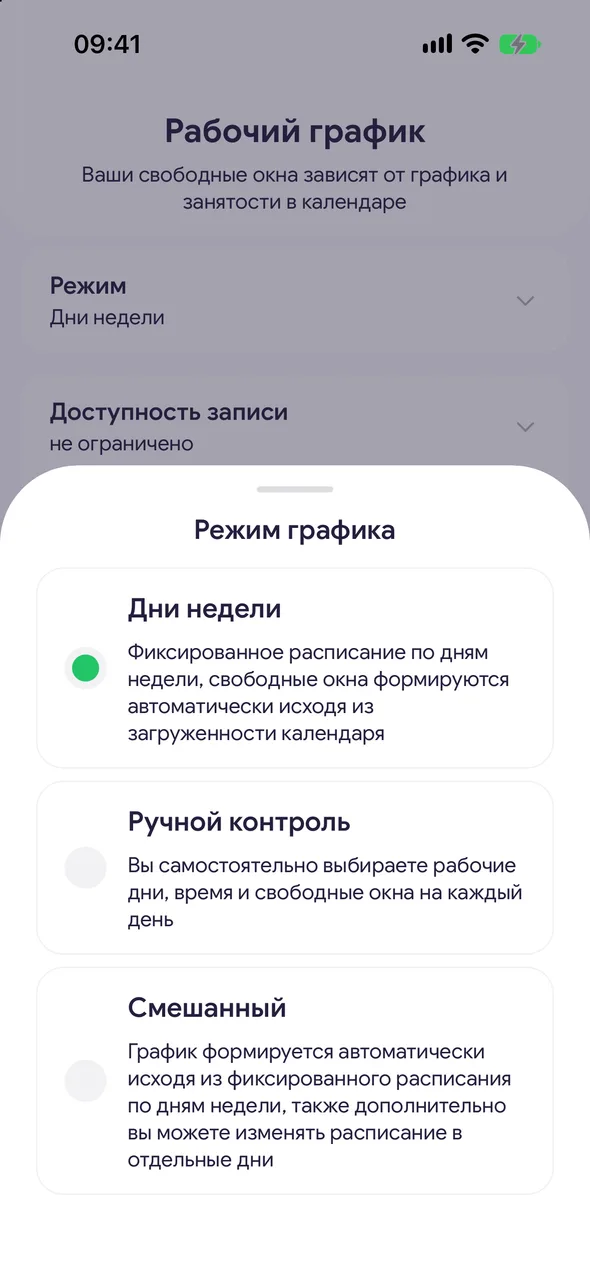
Choose a mode
Tap «Mode» - «Schedule mode» will open. «Weekdays» - one schedule for each week. «Manual control» - you mark working dates yourself. «Mixed» - the week plus individual dates you can change on top of it.
- 03
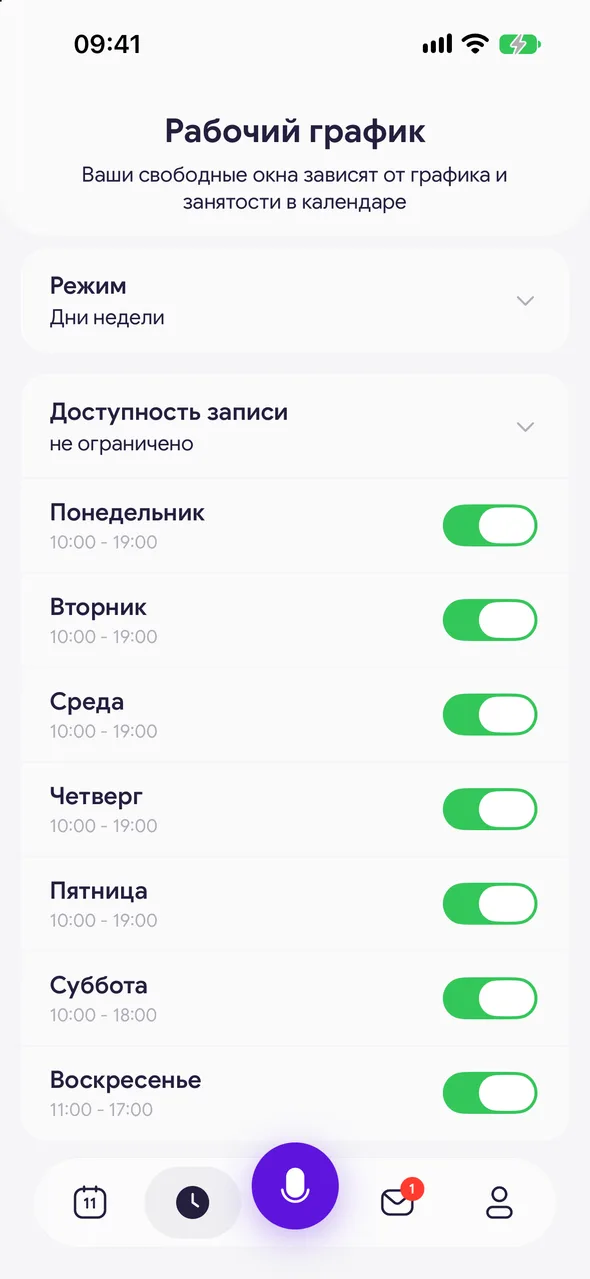
Turn on working days
In «Weekdays» mode, under the «Booking window» row there are seven days of the week. Use the toggle to make a day a working day or a day off.
- 04
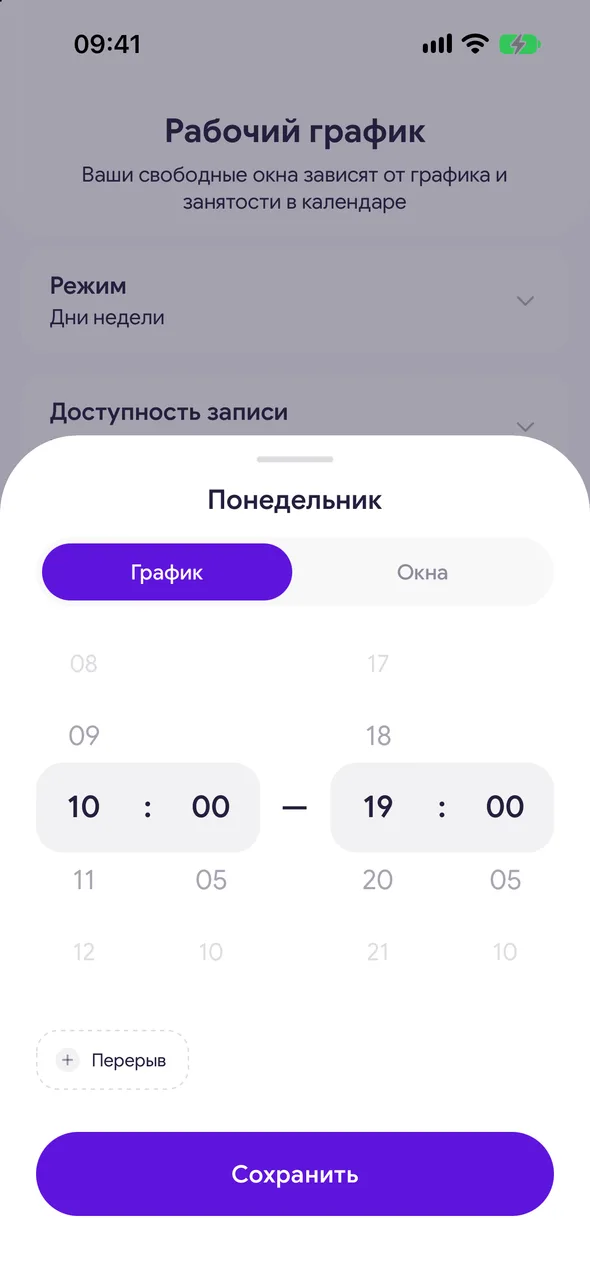
Set hours and breaks
Tap a day. On the «Hours» tab, choose the start and end of work. Tap «Break» to add a break - up to five per day, and an extra one is removed with the cross. Tap «Save».
Good to know
On the «Slots» tab, instead of hours you can mark exact times for booking.
A day off or vacation set as an event in the calendar closes that day for booking, while the schedule itself stays unchanged.
Questions and answers
FAQ
Why can't clients book on a certain day?
Check that the day is turned on in the schedule, that there is no day off or vacation for it in the calendar, and that the date is not later than «Booking window». In «Manual control» mode, unmarked dates are closed.
How do I set a lunch break?
«Working hours» - tap a day - «Break», choose the time and tap «Save».
See also
Free for a solo master
Try Easy Beezy
Calendar, clients, services and an online booking page - with no time limit. For a salon with a team - 14 days of full access.


