 Easy BeezyApp StoreGoogle PlayRuStoreInstall
Team
How to work by dates: «Manual control» and «Mixed»
For those whose schedule changes: mark working dates in the month calendar and set hours, windows or a day off for them.
Step by step
- 01
Turn on the mode
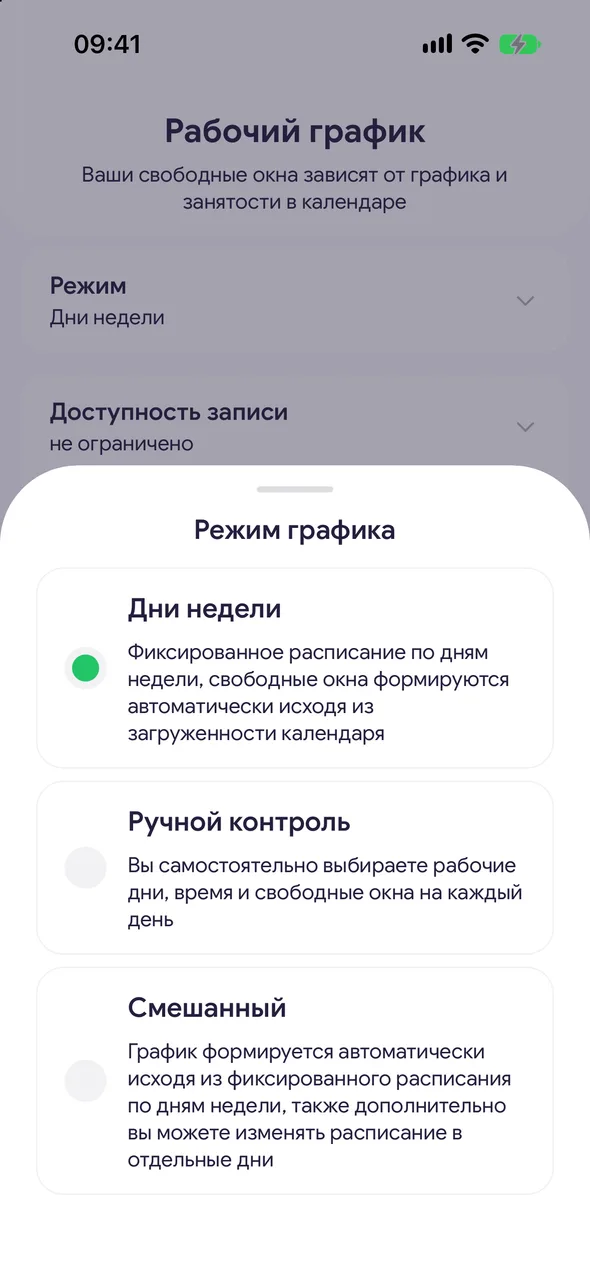
«Working hours» - «Mode». Select «Manual control» - the app will warn you that unmarked days and times will be closed for booking; tap «Set up». Or select «Mixed»: dates you haven't touched follow the days of the week.
- 02
Mark the dates
In the month calendar, tap the dates you need - you can select several at once. Each cell shows what that day has: hours, the number of windows or a dash. A cup icon means there is a break that day. Past days cannot be selected.
- 03
Set up the marked dates
A «Set up» button with the number of dates appears at the bottom. In the «Schedule setup» sheet, set hours and breaks on the «Hours» tab or exact times on the «Slots» tab and tap «Save».
- 04
Close the dates
To make a day non-working, in the same sheet tap «Make a day off» (for several dates - «Make days off»). In «Mixed» mode you can also close a regular working day of the week this way.
Good to know
In «Mixed» mode, the table of days of the week stays under the calendar - it sets everything that isn't configured by dates.
Dates later than «Booking window» and days with a day off or vacation in the calendar are shown with a dash.
You can return to the weekly schedule at any time: «Mode» - «Weekdays». The marked dates are not lost.
Questions and answers
FAQ
I turned on «Manual control» and no one can book with me. Why?
In this mode only marked dates are open. Mark working days in the calendar and set hours for them, or switch to «Mixed» so the other days follow the week.
See also
Free for a solo master
Try Easy Beezy
Calendar, clients, services and an online booking page - with no time limit. For a salon with a team - 14 days of full access.


