 Easy BeezyApp StoreGoogle PlayRuStoreInstall
Calendar
How to view the month calendar
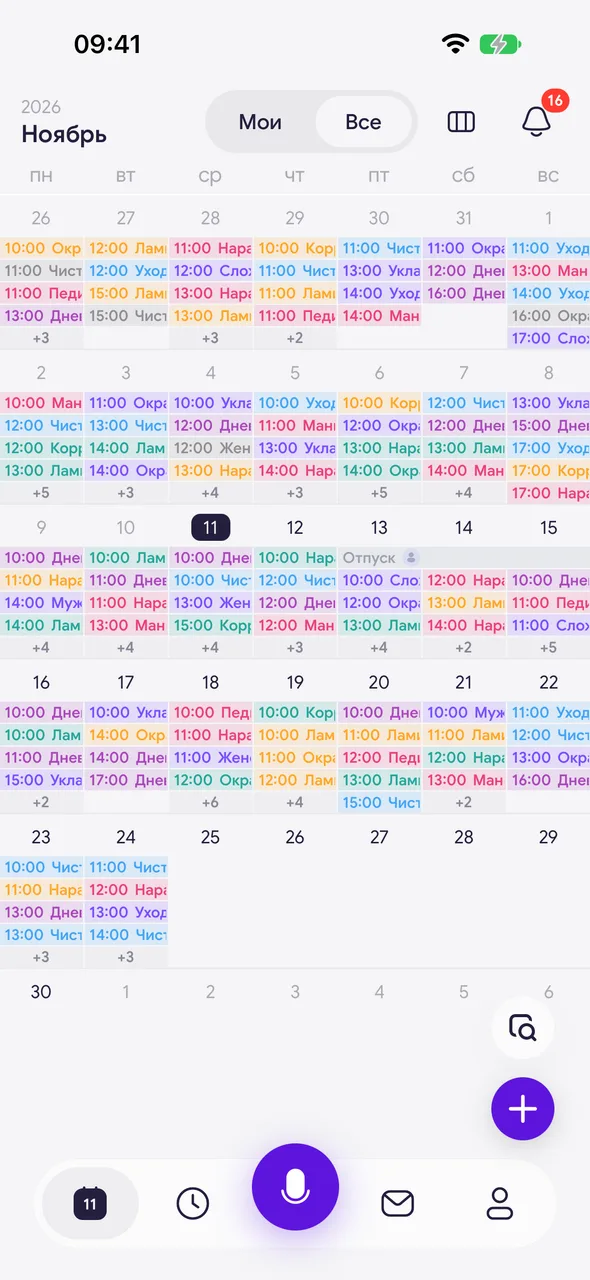
The month is the app's main screen: each date shows appointments, days off and vacations. From here you can open any day and create an appointment.
Step by step
- 01
Open the calendar
At the bottom of the screen, tap «Calendar». Tapping this button again returns the calendar to today.
- 02
Scroll through months
Swipe up or down on the grid - the next or previous month opens. The year and month are shown in the top left corner.
- 03
Open a day
Tap a date that has appointments - that day opens. Tapping an empty date immediately opens «New booking» for that day.

- 04
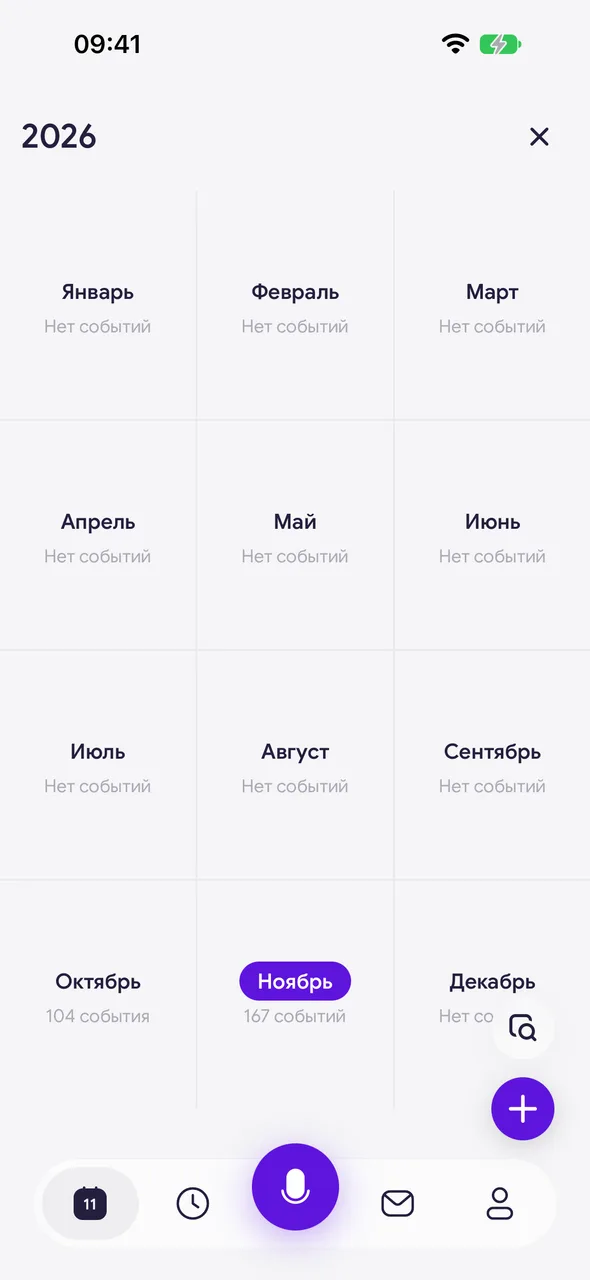
View the whole year
Tap the month name in the top left corner: the year opens, with the number of events for each month. Tap a month to go to it.
Good to know
Above the grid a banner «Work schedule» sometimes appears: it reminds you that your schedule is about to end or is not set up. Tapping it opens the schedule settings.
The calendar also works without the internet: previously loaded appointments are visible, and new ones will be sent to the server when the connection returns.
Questions and answers
FAQ
How do I get back to today?
Tap «Calendar» at the bottom again - the calendar returns to the current month and today's date.
Why does tapping a date open a new appointment instead of the day?
That is how an empty date works: it has no appointments, so the app immediately suggests booking a client. A date with appointments opens the day.
See also
Free for a solo master
Try Easy Beezy
Calendar, clients, services and an online booking page - with no time limit. For a salon with a team - 14 days of full access.


