 Easy BeezyApp StoreGoogle PlayRuStoreInstall
Bookings
How to book a client
A client booking is a client, a service, a master, a date and a time. The app only offers free slots according to the master's schedule.
Step by step
- 01
Open a new booking
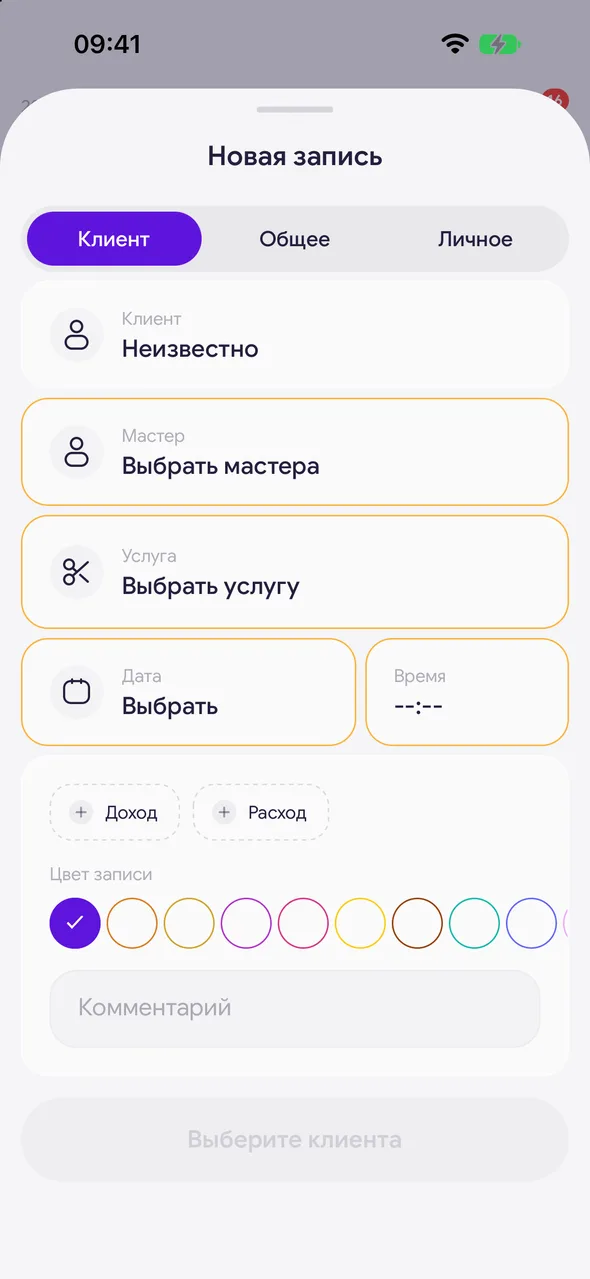
In the calendar, tap «+» at the bottom right. Other ways: tap an empty date in the month view or an empty spot on the day or week timeline - the date and time will already be filled in. The «New booking» window will open on the «Client» tab.
- 02
Client and service
Tap «Client» and choose a client from the database or create a new one. Then tap «Service» and choose a service - the price and duration will be filled in automatically.
- 03
Master
In the salon, choose a master in the «Master» field. If you are booking from your own calendar, you are already set as the master.
- 04
Date and time
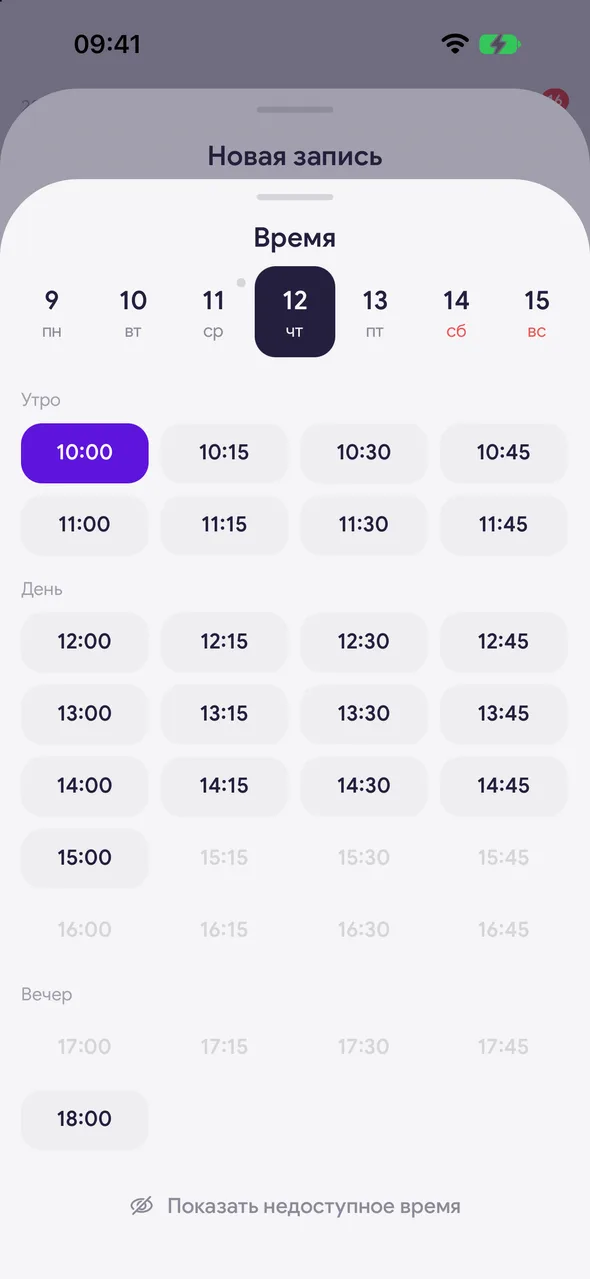
Tap «Date» and choose a day, then «Time» - a list of the master's free slots for morning, afternoon and evening will open. Tap the time you need.
- 05
Save
If you like, add a comment and a «Booking color». Tap «Create». The booking will appear in the calendar.
- 06
Notify the client
After creating the booking, a banner with a «Send confirmation» button will appear at the bottom - it opens a ready-made confirmation text for a messenger.
Good to know
To book a time outside the free slots, tap «Show unavailable time» in the time picker.
For a booking on a past date, the app will ask you to confirm: «Add a backdated booking?». Such a booking will be included in finances and analytics.
You can also book by voice: tap the microphone in the center of the bottom bar and say, for example, "Book Anna for a manicure tomorrow at 3:00 PM".
Questions and answers
FAQ
Can I book for free?
Yes. The calendar and bookings are free with no limit on the number of bookings.
Why is the time I need missing from the time picker?
That time is taken or falls outside the master's working schedule. Check the master's schedule or tap «Show unavailable time» to see all times.
See also
Free for a solo master
Try Easy Beezy
Calendar, clients, services and an online booking page - with no time limit. For a salon with a team - 14 days of full access.


