 Easy BeezyApp StoreGoogle PlayRuStoreInstall
Bookings
How to open a booking and view the details
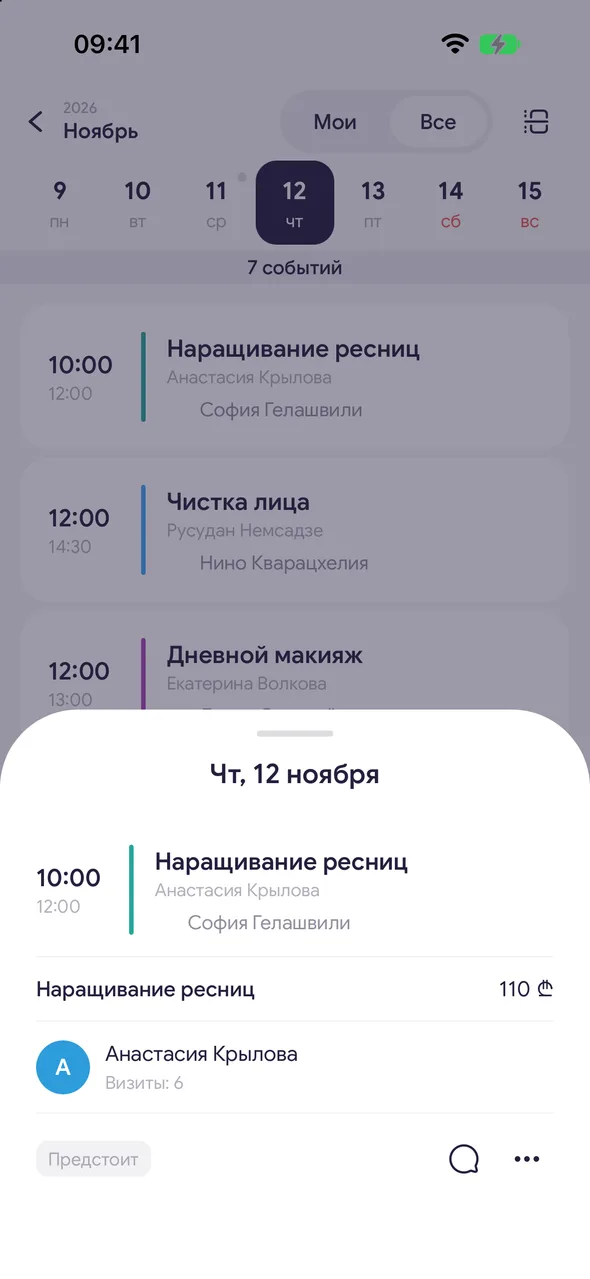
The booking card shows the client, services, price, master, time and comments. From it you also complete, cancel, edit and delete the booking.
Step by step
- 01
Open the booking
Tap the booking in the day list, day by hours or week view. The booking card will open at the bottom, with the visit date at the top.
- 02
Actions
Tap «⋯» («More») on the card: «Complete visit», «Cancelled», «Edit», «Delete». The same menu opens if you press and hold the booking.
- 03
Client
Tap the client's name - their card will open with phone, history and notes.
Good to know
You can complete a visit with payment on the PRO plan and only after it has started. You can cancel a booking on any plan.
A master can no longer change a completed or cancelled booking - the owner and administrator can edit it.
See also
Free for a solo master
Try Easy Beezy
Calendar, clients, services and an online booking page - with no time limit. For a salon with a team - 14 days of full access.


