 Easy BeezyApp StoreGoogle PlayRuStoreInstall
Settings and account
How to change your phone number and link Google or Apple
In "Account data" you can see which ways you use to sign in. Add a second sign-in method so you don't lose access when you change your phone.
Step by step
- 01
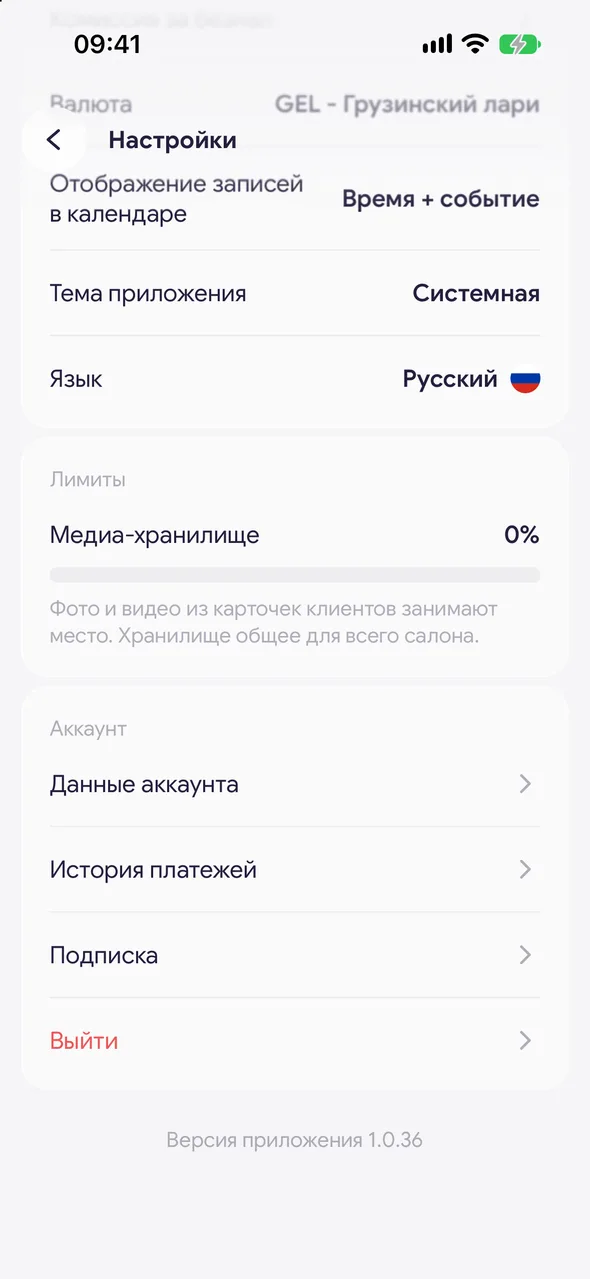
Open account data
"Profile" - "Settings" - in the "Account" group, tap "Account info".
- 02
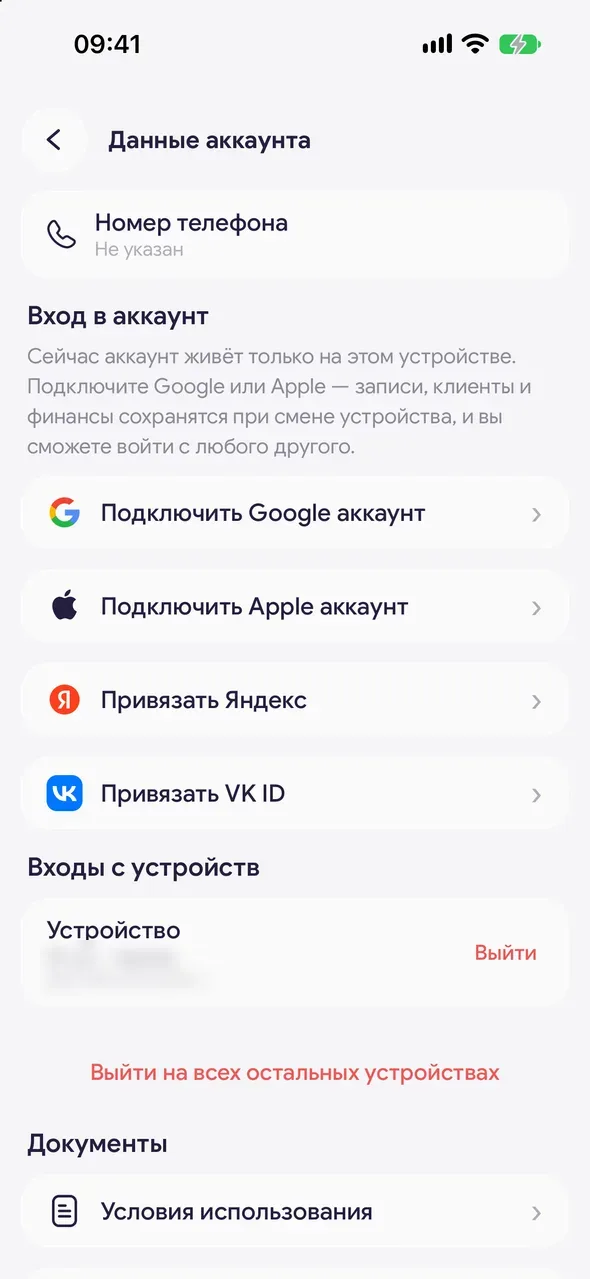
Change or confirm your number
Tap "Phone number". Enter the new number and tap "Get code", then enter the code from the SMS. If "Not confirmed" is shown next to the number, confirm your current number the same way - after that you can sign in with it.
- 03
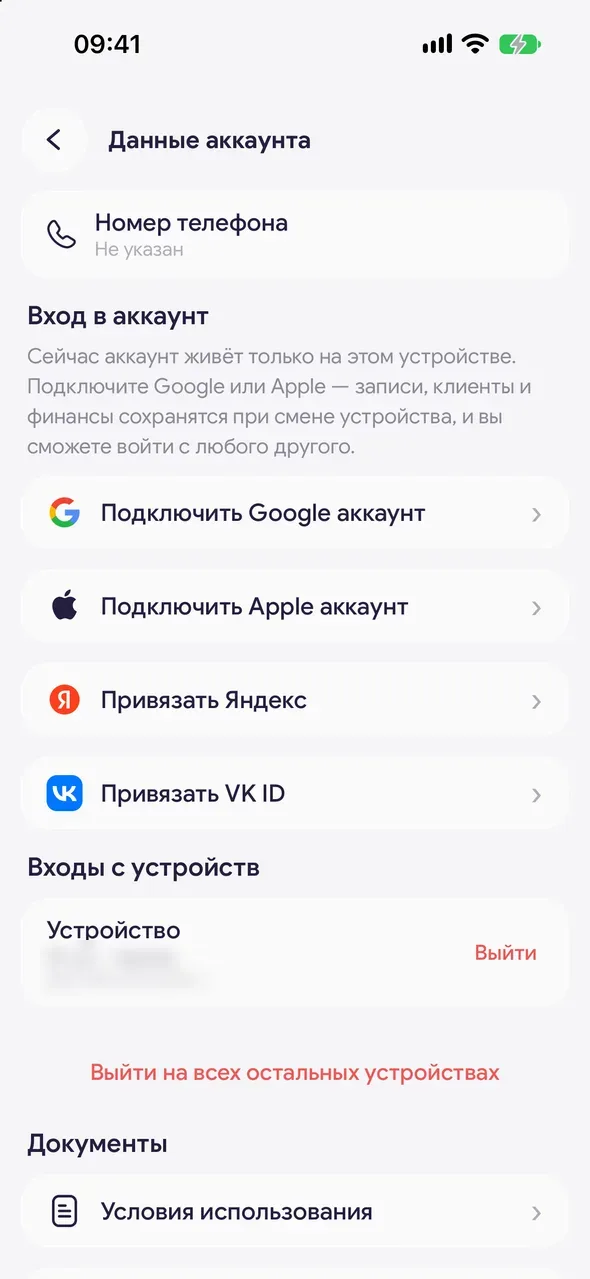
Link Google or Apple
In the "Signing in" block, tap "Connect Google account" or "Connect Apple account" (Apple - iPhone only) and confirm sign-in in the service window. If available, "Link Yandex" and "Link VK ID" are there too.
Good to know
Linked sign-in methods are shown at the top of the screen along with the account email. You can sign in with any of them - you'll get into the same account.
If the number is already confirmed in another account, the app will tell you: to get into that account, sign out and sign in with the number.
At the bottom of the screen, in the "Documents" block, you can open "Terms of use" and "Privacy policy".
Questions and answers
FAQ
How do I move my account to a new phone?
On the new phone, sign in the same way as on the old one: with your number or via Google or Apple. All appointments, clients and finances are stored on the server and will appear automatically.
See also
Free for a solo master
Try Easy Beezy
Calendar, clients, services and an online booking page - with no time limit. For a salon with a team - 14 days of full access.


