 Easy BeezyApp StoreGoogle PlayRuStoreInstall
Calendar
How to set or remove a day off by long-pressing a date
A full-day day off is set right in the calendar: hold your finger on the date. It is removed the same way.
Step by step
- 01
Hold your finger on the date
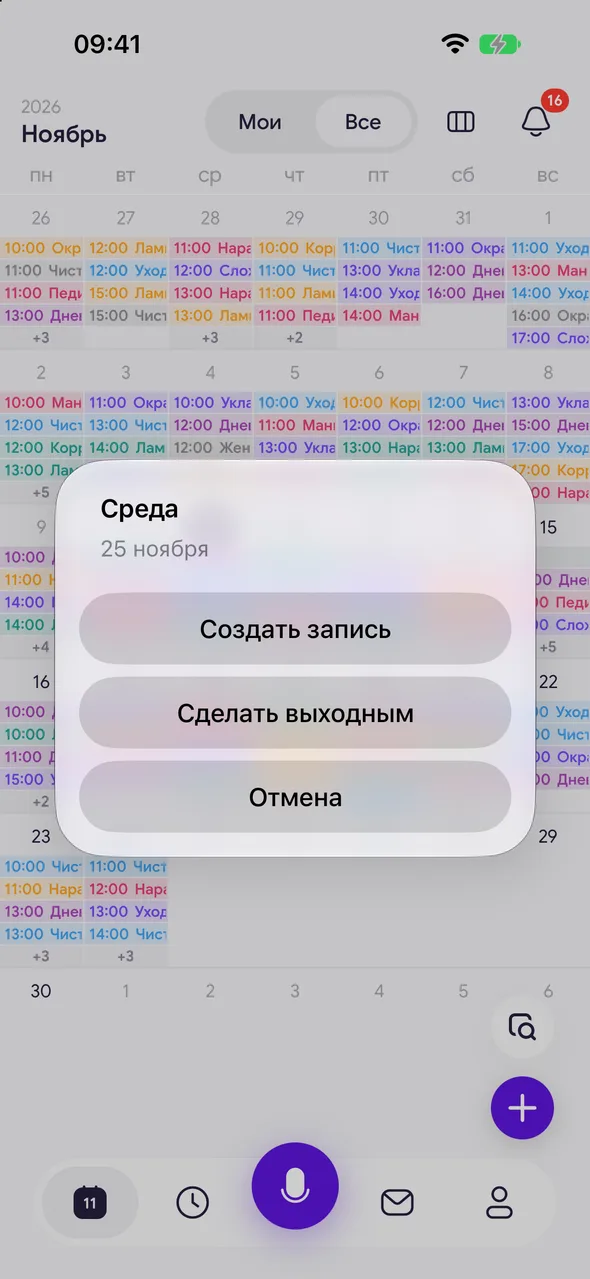
In the month view, in the week or day date strip, hold your finger on the desired date. A window with the day of the week and date will appear.
- 02
Choose an action
«Make a day off» - the whole day becomes a day off. «Create appointment» - a new appointment for this date will open.
- 03
Remove the day off
On a date that already has a day off, the same window will show «Remove day off».
Good to know
A day with client appointments can also be made a day off: the app will warn you, the appointments will remain, but no new ones will be available for that day.
If the day is closed by the work schedule, after «Remove day off» a window with working hours for this date will open - they will be added to the schedule only for this day.
It is more convenient to set a day off for several days or a vacation via «+» - the «Personal» tab.
Questions and answers
FAQ
Can clients book online for a day off?
No. On a day off, the booking page does not show available time.
See also
Free for a solo master
Try Easy Beezy
Calendar, clients, services and an online booking page - with no time limit. For a salon with a team - 14 days of full access.


