 Easy BeezyApp StoreGoogle PlayRuStoreInstall
Bookings
How to confirm or decline an online booking request
When a client books themselves through the booking page, a request comes in. Once confirmed, it becomes an appointment in the calendar.
Step by step
- 01
Open requests
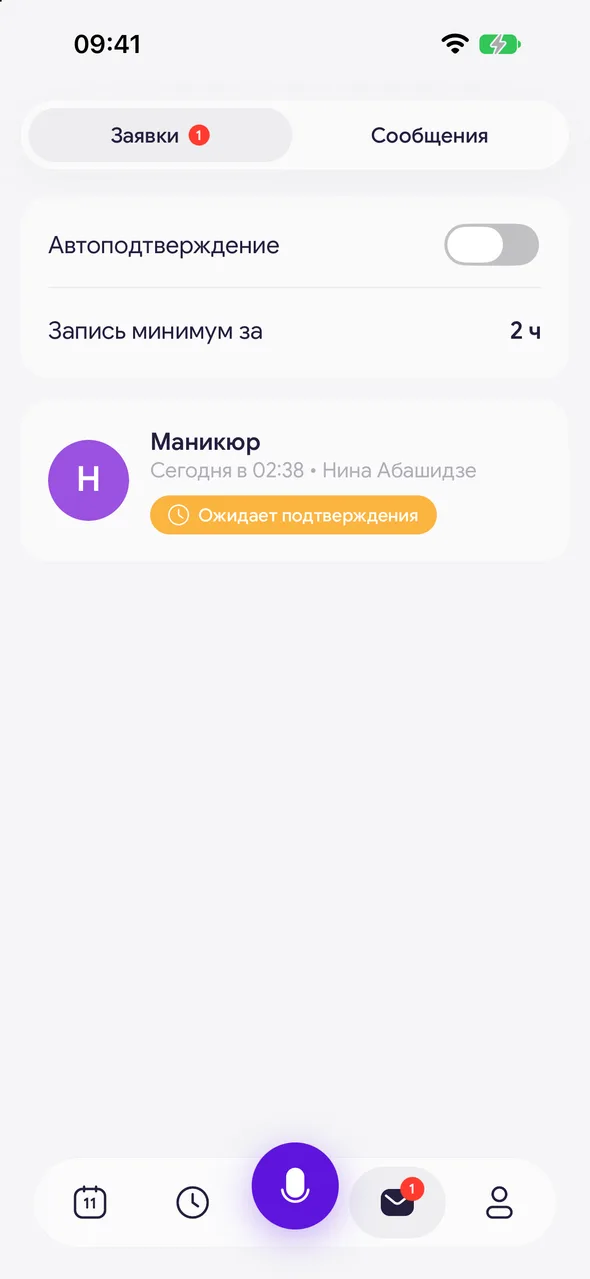
In the bottom panel, tap «Requests & messages» - it shows a counter of new requests. Select «Requests».
- 02
Open the request
Tap the new request. The «Request» window opens: client, service, staff member, date and time are already filled in, and the client's comment is visible at the top.
- 03
Confirm
Check the details, change the time or staff member if needed, and tap «Confirm». The appointment will appear in the calendar, and the app will offer to send a confirmation message to the client.
- 04
Or decline
Tap «Decline request» and confirm with «Yes, decline». A declined request can be opened later and still confirmed.
Good to know
«Auto-confirm» at the top of the requests list confirms them without your involvement - on the PRO plan. Such requests are marked «Booked automatically».
«Book at least» - how far in advance of the visit a client can book online.
A confirmed request opens its appointment in the calendar.
Questions and answers
FAQ
The client booked, but there's no appointment in the calendar. Why?
The request is awaiting confirmation in the «Requests & messages» section. Confirm it and the appointment will appear. To have requests confirmed automatically, enable «Auto-confirm».
See also
Free for a solo master
Try Easy Beezy
Calendar, clients, services and an online booking page - with no time limit. For a salon with a team - 14 days of full access.


