 Easy BeezyApp StoreGoogle PlayRuStoreInstall
Team
How to upload a price list from a photo, file or link
You don't have to enter services by hand: the app will read the price list from a photo, a file or a page in another service, and you check it before adding.
Step by step
- 01
Open «Upload price list»
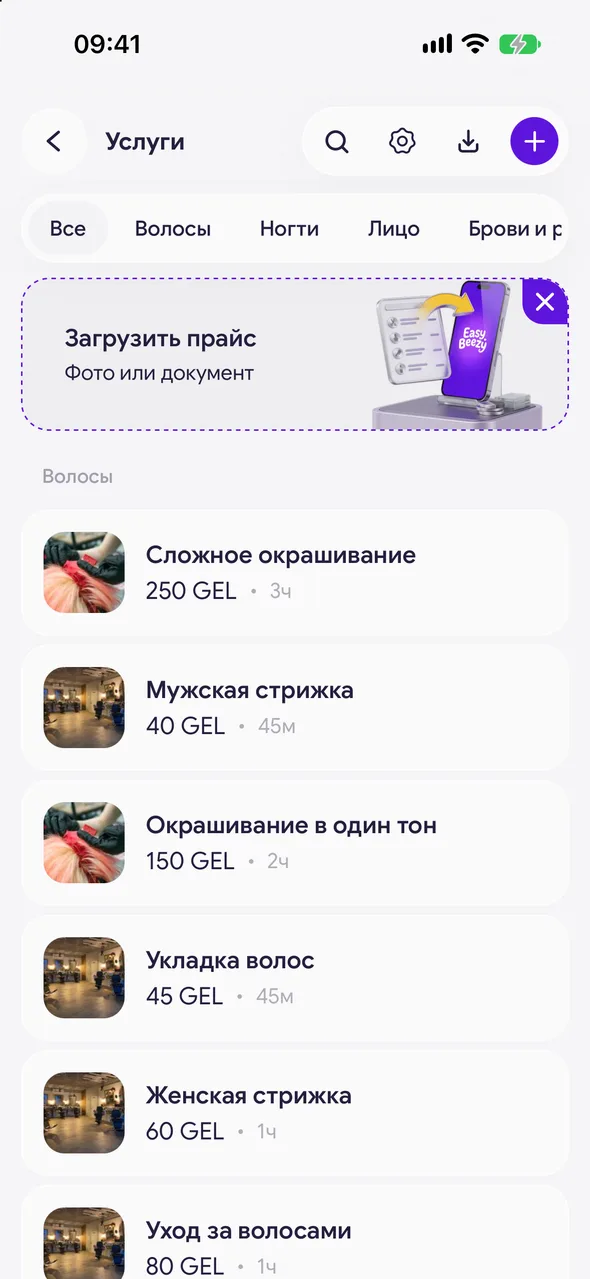
In the «Services» section, tap the «Upload a price list» banner or the upload icon in the top right corner.
- 02
Photo or file
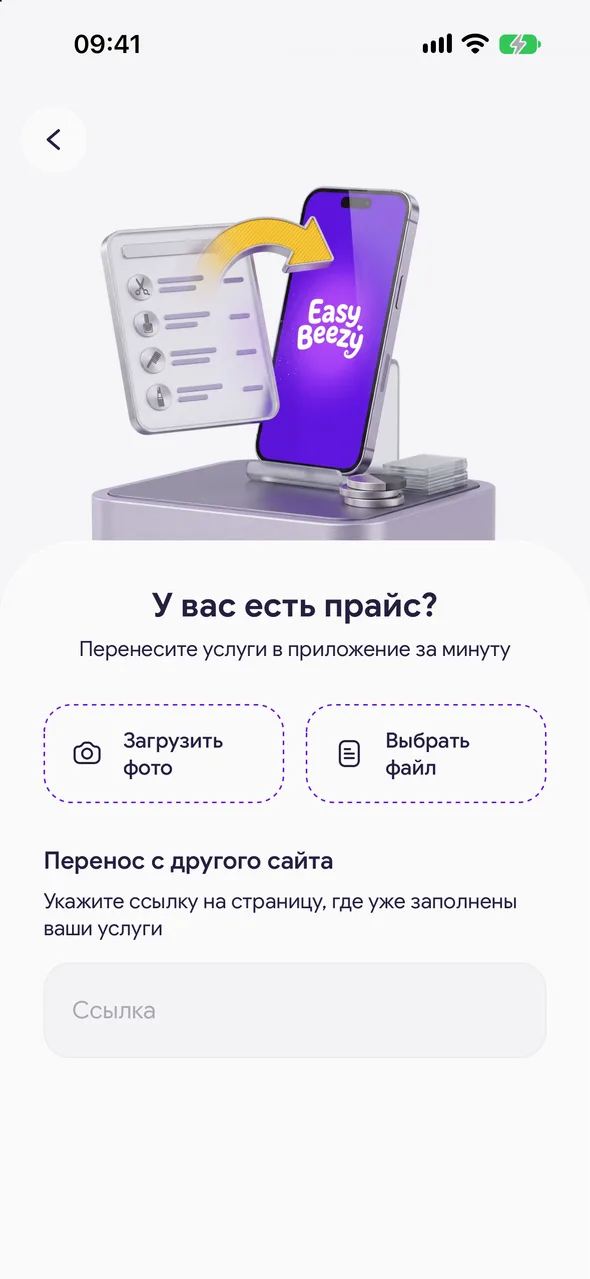
In the «File with services» block, tap «Upload photo» or «Upload file» - up to 5 files at a time. Tap «Copy price list».
- 03
Or a link
In the «Transfer from a website» block, paste the link to your page in another service where services are already filled in and tap «Copy price list». Reading usually takes 10-30 seconds.
- 04
Check and add
The app will show the services it found. Tap a service to edit its name, category, price, duration or description. Fill in anything missing a price or time. If the service already exists, choose «Update» or «Skip». Tap the add button at the bottom.
Good to know
Without a subscription - two free uploads, then PRO.
You can also upload a price list from the online booking page settings - there is the same banner there.
Questions and answers
FAQ
Can I transfer a price list from DIKIDI?
Yes: in «Transfer from a website», paste the link to your page in DIKIDI and tap «Copy price list».
See also
Free for a solo master
Try Easy Beezy
Calendar, clients, services and an online booking page - with no time limit. For a salon with a team - 14 days of full access.


