 Easy BeezyApp StoreGoogle PlayRuStoreInstall
Migrating from other services
How to upload clients from an Excel or CSV file
The app parses the file columns on its own, shows you what the client cards will look like, and adds them with a single button.
Step by step
- 01
Save the file to your phone
If the file arrived by email or messenger, save it to your phone. On iPhone: «Share» - «Save to Files».
- 02
Open the upload screen
«Profile» - «Clients» - the menu button in the top right - «Import client base». Choose «From file» and find the file.

- 03
Check the file
The app will show how many clients will be added, how many are already in the database and who will not be added. In the «Columns» block, tap a column to specify what it contains: name, phone, note, date of birth or «Do not import». If the first row contains column names, leave «First row is column names» on.
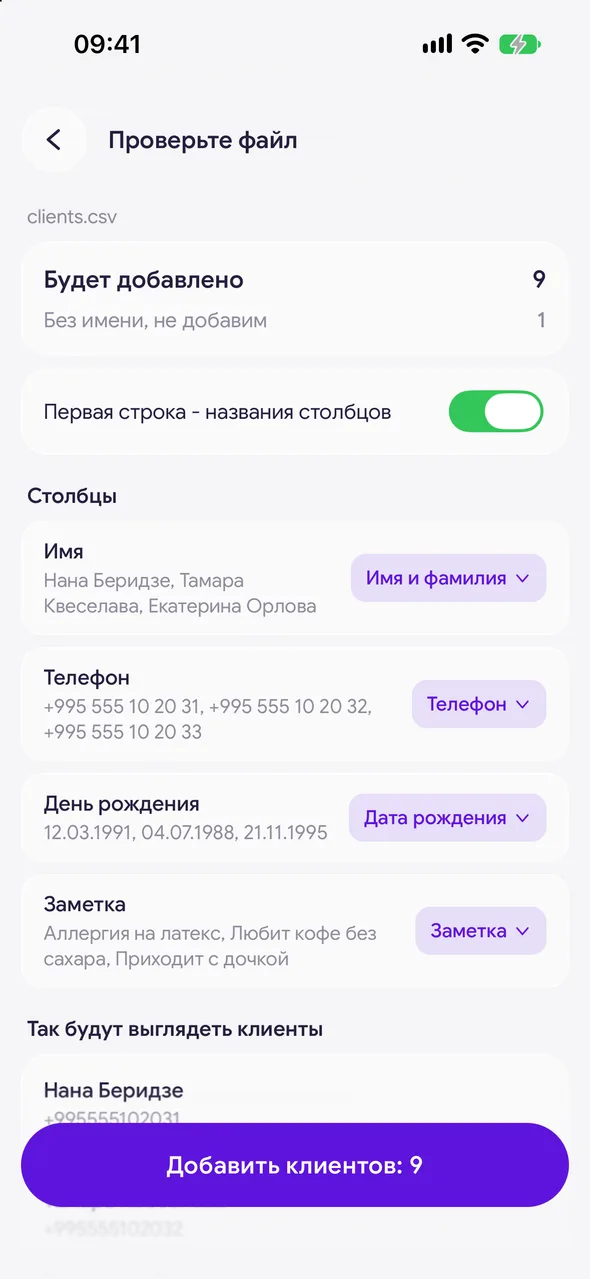
- 04
Add the clients
Check what the cards will look like and tap the add clients button at the bottom of the screen.
Good to know
Clients without a name are not added. Duplicates within the file and clients whose phone number is already in the database are skipped too.
Picked the wrong file? Use «Undo last import» in the same menu. Clients who already have appointments, payments or messages, and those you have edited, will stay.
You can also add clients from your address book: «From phone contacts».
Questions and answers
FAQ
Which files are supported?
Excel (.xlsx, .xls), CSV and TXT.
The app did not find the phone column. What should I do?
Tap the right column in the «Columns» block and specify that it contains phone numbers.
Free for a solo master
Try Easy Beezy
Calendar, clients, services and an online booking page - with no time limit. For a salon with a team - 14 days of full access.


